MCP Quickstart: Connect Your First MCP Server to Claude and Cursor in 10 Minutes
What MCP is, how it differs from function calling, how to configure local and remote servers, and how to fix the five most common errors.
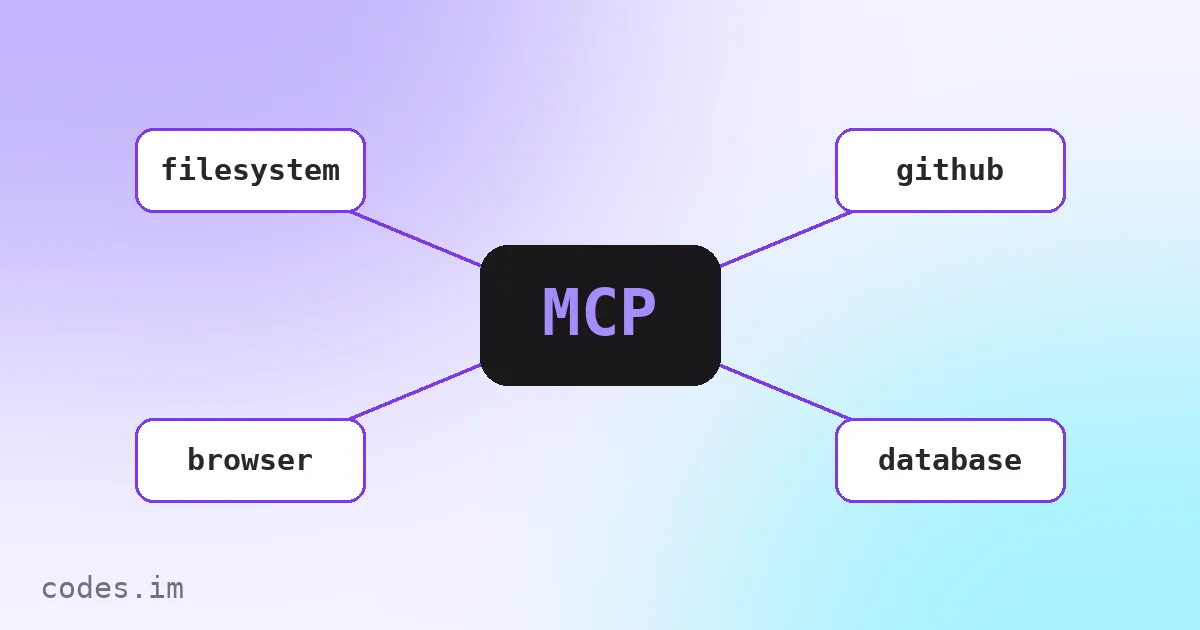
If you use Claude Desktop, Cursor or the AI assistant in VS Code, you have probably come across the term “MCP server”. This post takes the shortest path through it: what it is, how to connect your first server, and what to check when something goes wrong.
What is MCP?
MCP (the Model Context Protocol) is an open protocol that defines how AI applications connect to external tools and data.
Think of it as a USB port for AI:
- Clients are AI applications such as Claude Desktop, Claude Code, Cursor and VS Code;
- Servers are small, independent programs — “read and write local files”, “drive a browser”, “query a database”, “access GitHub”;
- The protocol is the agreed message format between them. A client can list the tools, resources and prompts a server offers, and call them when needed.
How is it different from function calling?
Function calling (tool use) is a capability of the model API: you describe a set of functions in your request, the model decides which one to call and with what arguments, and your code executes it.
MCP is an application-level standard built on top of that. Tools are no longer hard-wired into one app’s code; they live in standalone servers. The same MCP server can be used by Claude Desktop, Cursor and your own agent, without writing a separate integration for each.
Two kinds of servers: local and remote
| Type | How it runs | Good for |
|---|---|---|
| Local (stdio) | The client starts a process on your machine and talks to it over standard input/output | Local files, local databases, command-line tools |
| Remote (HTTP) | The server runs in the cloud and the client connects to a URL | SaaS services (GitHub, Notion…), tools shared by a team |
Local servers are usually started with npx (Node.js) or uvx (Python), so make sure the matching runtime is installed first.
Hands-on: the filesystem server
Let’s use the official filesystem server, which lets the AI read and write files in directories you choose.
Claude Desktop: open the developer section in Settings and edit claude_desktop_config.json:
{
  "mcpServers": {
    "filesystem": {
      "command": "npx",
      "args": ["-y", "@modelcontextprotocol/server-filesystem", "/Users/you/Documents/notes"]
    }
  }
}
Save it, then fully quit and reopen Claude Desktop. The server will show up in the tools list of the chat box.
Claude Code: a single command does it:
claude mcp add filesystem -- npx -y @modelcontextprotocol/server-filesystem ~/Documents/notesCursor: create .cursor/mcp.json in your project root. It uses the same mcpServers format as Claude Desktop.
Config file locations and field names differ slightly between clients (VS Code, for example, uses servers instead of mcpServers). If you can’t keep track, fill in the MCP Config Generator once and copy the output for each client.
The five most common problems
- Config changes don’t take effect: most clients only read the config at startup. Quit completely — not just close the window — and reopen.
npx: command not found: GUI apps often don’t see the PATH you set up in your shell. Setcommandto the absolute path ofnpx(runwhich npxin a terminal to find it).- Invalid JSON: one stray comma breaks the whole config file. Paste it into the JSON Formatter to check.
- Wrong paths: the filesystem server can only access the directories listed in its arguments. Use absolute paths.
- Servers that need a key: put API keys in the
envfield, not inargs, and never commit the config file to a public repository.
A word on security
An MCP server can act on your machine — you are opening a door for the AI:
- Install servers only from trusted sources, preferably official ones or well-known maintainers;
- Give filesystem servers access to only the directories they need, never your whole home folder;
- Read the arguments of tool calls before approving anything sensitive.
Wrapping up
MCP standardises “connecting tools to AI”: write a server once, use it everywhere. Start with local servers such as the filesystem or browser automation ones, then move on to remote services — or write your own.